One missing feature on the TyTN is call recording.
I saw the LivePVR system discussed on-line, which seems to offer ideal functionality. It can record calls, and can also record arbitrarily long sound bites. Best of all, during non-call use (e.g., during a meeting) it can continuously record a rolling buffer of 60 seconds through the microphone, and then when the user pushes a button, save the past 60 seconds and the subsequent 60 seconds.
Unfortunately the trial version of the software doesn't seem to record calls on my TyTN. The manual recorder and the in-meeting recorder seem to work, but when I tell it to record a call, no recording shows up. I'm still working on it, and will report more as I find out more.
Anyone else work with LivePVR, or other software for recording calls? Comments welcome.
Wednesday, November 15, 2006


Tuesday, November 14, 2006
Blog entry directly from my TyTN (DIDN'T WORK)
This is my first test posting a blog entry directly from my TyTN. This message is being sent by e-mail to the address specified in Blogspot as corresponding to this blog. The system doesn't handle images, but there are apparently other interfaces that do. I'm starting with the simplest interface and I'll try the other methods later.
Even without pictures, I have to say it's pretty good if this works smoothly this easily.
The message above was received by the blog system and I could see it when I administered the blog, but it wasn't actually published to the blog despite my setting the blog to auto-publish e-mail submissions. Anyone else have experience getting this running? Comments welcome.
Using MP3 files as SMS ringtones
A reader asked:
But as pointed out in the comments, I'm wrong about this, \Windows\Rings is only for incoming phone call rings, not other notifications.
Anyone know more about this? Add a comment if you do. If I find out more, I'll put it here.
Great blog... I just got my TyTN this week and would like to know if you could
tell me how to change the sms or mms tone to an mp3 or any other file for that
matter that is not already in the list. Let me know if you can. Thanks!
And I answered:
The most straightforward is to use File Explorer to copy your MP3 into:
My
Device \ Windows \ Rings
and it should then show up in all menus of ring tones for all purposes.
Note that I don't use a lot of custom ringtones, since I tend to like old-fashioned tones for everything. (For example, actual phone ringing sounds for incoming calls.) But this is my understanding from a bit of experimenting.
But as pointed out in the comments, I'm wrong about this, \Windows\Rings is only for incoming phone call rings, not other notifications.
Anyone know more about this? Add a comment if you do. If I find out more, I'll put it here.
Sunday, November 12, 2006
HTC getting better known
HTC, the company that makes the TyTN and the K-Jam, and that made a lot of other Windows Mobile phones, has been virtually unknown until recently because they sell through other companies who name-brand the phones. The K-JAM and the TyTN were the first phones that were sold with a push for HTC brand awareness.
For anyone interested, this article says that HTC has already gotten 5.4% of the smartphone market:
http://www.cellular-news.com/story/20313.php
with the comment:
For anyone interested, this article says that HTC has already gotten 5.4% of the smartphone market:
http://www.cellular-news.com/story/20313.php
with the comment:
the most notable performance in 3Q was that of HTC as branded shipments, including Qtek shipments, grew a substantial 275% compared to Qtek shipments in 3Q05, as the tighter integration of channel partners and the addition of significant marketing investment and more comprehensive end-user support all helped to increase market share to 6%.
Thursday, November 09, 2006
Custom ringtones (answering a question from a comment)
Someone asked:
I also own a TyTN and was wondering how to set an mp3 for ringing without
putting it in the \windows\rings folder, I prefer let it on my SD Card...Did
you
already manage to do that ?
I don't really use mp3 ringtones, preferring old-fashioned phone-ringing sounds (although I do use different "ring" sounds for different people). But with some testing, it looks like there's an easy way to set the ringtone without having to copy it yourself to \windows\rings, but the result is the same -- the system just copies it for you.
The shortcut to doing this is to go to your MP3 file in File Explorer and click&hold on the file. When the menu pops up, one option will be to set as ringtone. But it will then just copy it for you to the rings folder, and set it as your primary ringtone. It will then also be in the pulldown menu in contacts.
But again, it looks to me like there's no way to set a ringtone that's not in the rings folder, if your goal is to save memory. It does seem likely that there's a way to change the rings folder in the system registry, but then you'd ONLY be able to use ringtones in the memory card folder, so you're buying yourself a headache. But I haven't gotten into registry changes yet.
Quick tip: Turning off camera sound
Quick tip that took me a while to find: The sound that the camera makes is completely artificial, and can be turned off. Just enter the camera mode, click on the wrench in the lower left corner, then on the wrench on the right side of the list of icons, then you'll find a number of different settings that you can mess with.
With teh camera noise turned off, I find it easy to take pictures secretly while appearing to be using the PDA normally.
With teh camera noise turned off, I find it easy to take pictures secretly while appearing to be using the PDA normally.
Saturday, November 04, 2006
3g video telephony on TyTN
To respond to a question I received: I'm still in the process of upgrading my phone plan to include 3g (story below), so I haven't used the 3g video telephony features of the phone.
(I have sent what I called "video e-mail" by recording a video clip and emailing it over the Wi-Fi connection, but this is not the same thing. See a previous message about doing that if you're interested.)
The reason I haven't gotten 3g running on my phone is that my carrier (Orange Israel) refuses to give a uSIM for 3g calls to a phone that they haven't tested, and they haven't tested the TyTN yet. Another local carrier (Celcom Israel) is happy to take me as a 3g customer, but since number portability isn't working yet, I need to decide if it's worth switching numbers to have 3g connectivity. Any comments from 3g users about how much they've used and liked 3g features would be appreciated, just click the "comments" link below this article.
(I have sent what I called "video e-mail" by recording a video clip and emailing it over the Wi-Fi connection, but this is not the same thing. See a previous message about doing that if you're interested.)
The reason I haven't gotten 3g running on my phone is that my carrier (Orange Israel) refuses to give a uSIM for 3g calls to a phone that they haven't tested, and they haven't tested the TyTN yet. Another local carrier (Celcom Israel) is happy to take me as a 3g customer, but since number portability isn't working yet, I need to decide if it's worth switching numbers to have 3g connectivity. Any comments from 3g users about how much they've used and liked 3g features would be appreciated, just click the "comments" link below this article.
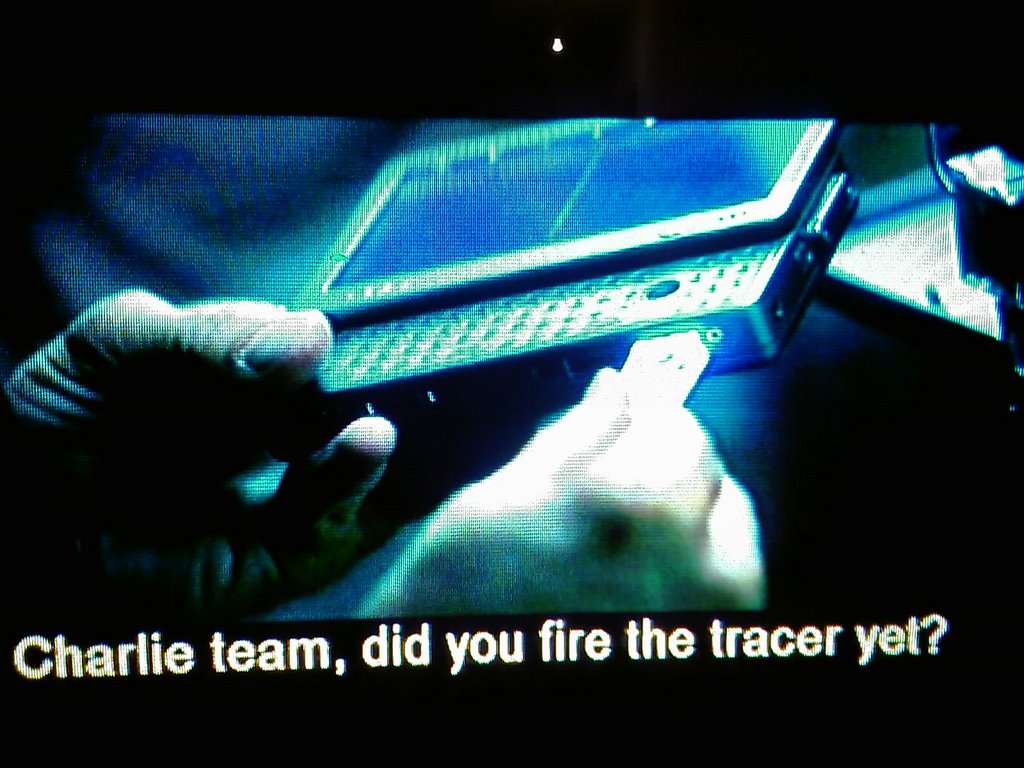
Mission Impossible 3 gizmo: TyTN/K-JAM form factor
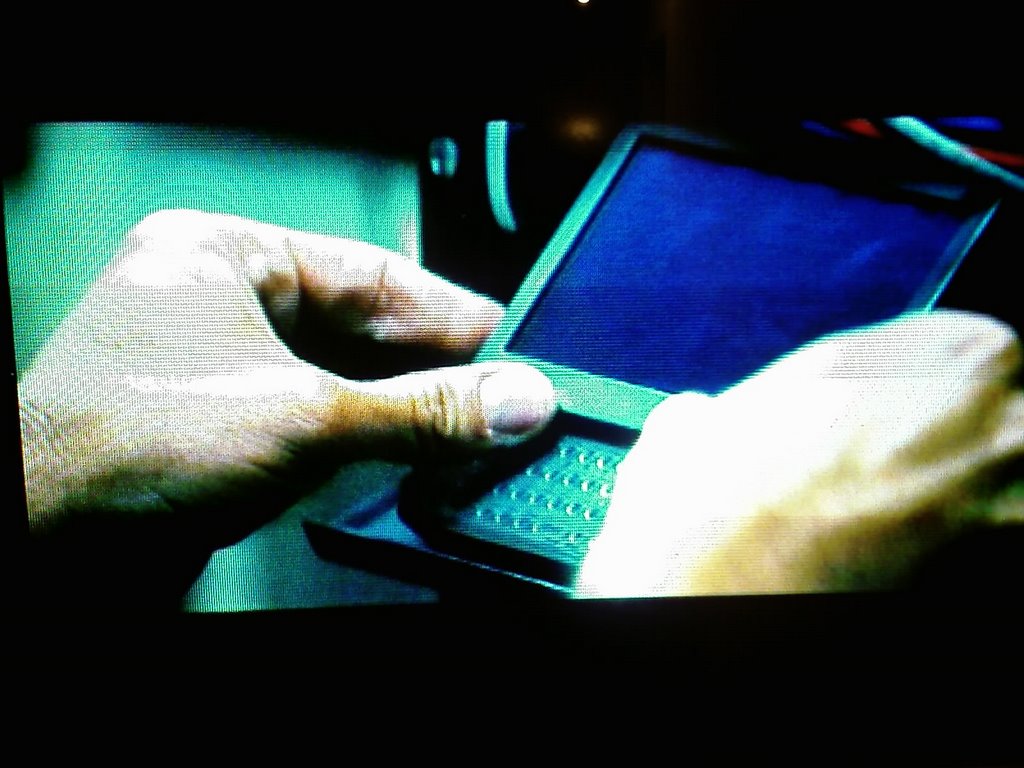
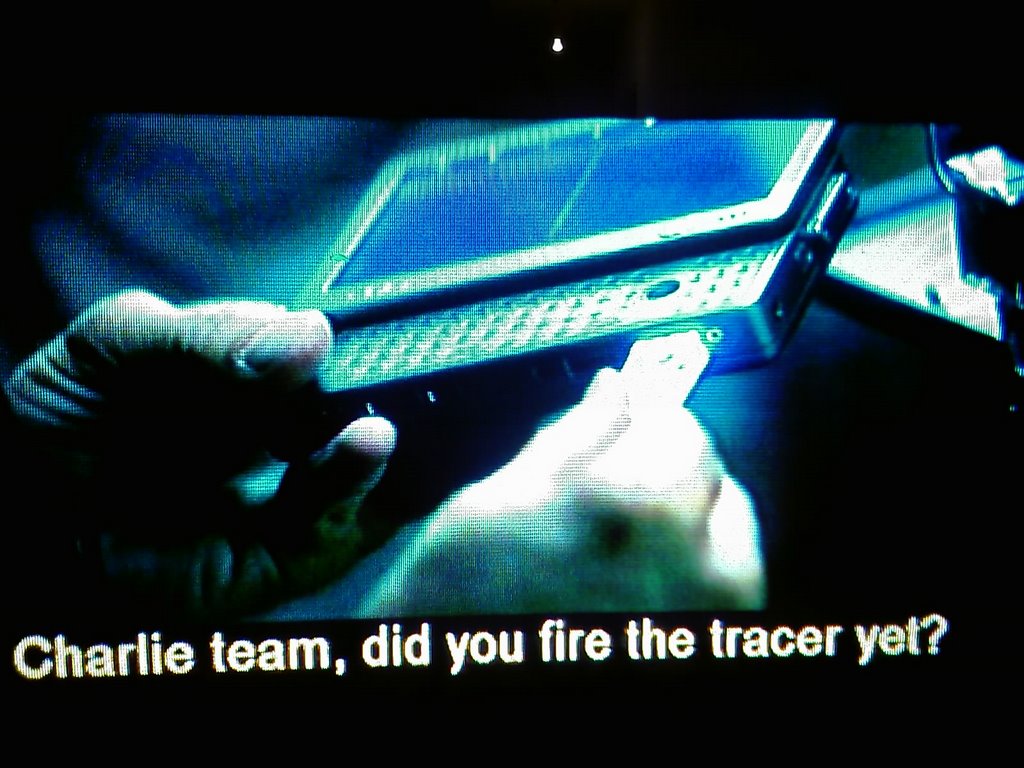
In case you didn't notice, in Mission Impossible 3 the Tom Cruise character uses a PDA with a form factor just like the HTC TyTN and K-JAM, with a keyboard that slides out the long edge of the PDA. If you look closely, you'll see that it looks like it has three rows of keys above the space bar but no row of number keys, just like on the TyTN and K-JAM.
ADDED COMMENT: As the first commenter points out, the device in the movie looks just like the OQO PDA-sized Windows XP computer. But I'm leaving the post here, because the movie pictures still show the greatness of the TyTN/K-JAM form factor.
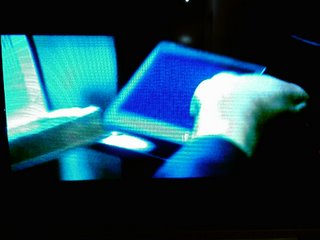
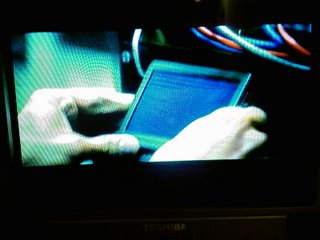
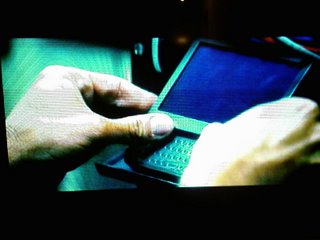
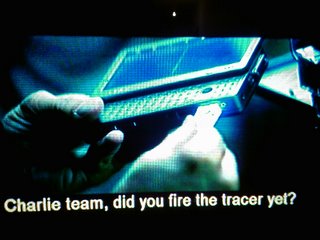
ADDED COMMENT: As the first commenter points out, the device in the movie looks just like the OQO PDA-sized Windows XP computer. But I'm leaving the post here, because the movie pictures still show the greatness of the TyTN/K-JAM form factor.


Wednesday, November 01, 2006
Skype in a coffee shop
Today I took my TyTN into a coffee shop and successfully used Skype on their Wi-Fi.
I know, once it's working at home it will obviously work in a coffee shop, but it's simply fun to have the same Skype account work both home and out and about, with so little work in getting it set up.
I used the stereo headset that came with the TyTN, and held the mic (in the little box w/ the volume control) and spoke into it, and the sound quality was good. (As I said previously, Mobile Skype won't work with Bluetooth phone headsets or with the device used phone-style, only speakerphone or wired headset.)
I was also able to download e-mail at the same time that I was using Skype, although the email downloading felt slower. I don't know whether the slow feeling was a Wi-Fi issue or a TyTN multi-tasking issue.
Bottom line, I'm impressed. Time to go ahead with a more complete Skype in&out package.
I know, once it's working at home it will obviously work in a coffee shop, but it's simply fun to have the same Skype account work both home and out and about, with so little work in getting it set up.
I used the stereo headset that came with the TyTN, and held the mic (in the little box w/ the volume control) and spoke into it, and the sound quality was good. (As I said previously, Mobile Skype won't work with Bluetooth phone headsets or with the device used phone-style, only speakerphone or wired headset.)
I was also able to download e-mail at the same time that I was using Skype, although the email downloading felt slower. I don't know whether the slow feeling was a Wi-Fi issue or a TyTN multi-tasking issue.
Bottom line, I'm impressed. Time to go ahead with a more complete Skype in&out package.
Skype Mobile over GPRS?
Someone asked on a mailing list about Skype Mobile running over a GPRS connection (cellular data connections, but not 3g). From checking a bit, here's what I found:
Skype in general is reported to require 25-130 KBPS depending on circumstance. GPRS gives more than that in some implementations, but is usually assumed to give 40 kbps reliably. That means that Skype may sometimes be able to work over GPRS but it's borderline.
I read an article saying that someone had run Skype reliably over a 51KBPS dialup connection, but that Skype only worked half the time over GPRS. This implies that it does sometimes work, depending on circumstance, but not reliably.
I also read that Skype is considered to use less bandwidth than other VoIP solutions, so if anything VoIP will work, Skype will.
But all this is based on my understanding, which may be wrong, clarifications welcome. My experience so far with Skype Mobile has been over Wi-Fi.
Skype in general is reported to require 25-130 KBPS depending on circumstance. GPRS gives more than that in some implementations, but is usually assumed to give 40 kbps reliably. That means that Skype may sometimes be able to work over GPRS but it's borderline.
I read an article saying that someone had run Skype reliably over a 51KBPS dialup connection, but that Skype only worked half the time over GPRS. This implies that it does sometimes work, depending on circumstance, but not reliably.
I also read that Skype is considered to use less bandwidth than other VoIP solutions, so if anything VoIP will work, Skype will.
But all this is based on my understanding, which may be wrong, clarifications welcome. My experience so far with Skype Mobile has been over Wi-Fi.
Monday, October 30, 2006
Skype (Windows Mobile version) on TyTN
I just installed Skype Mobile on my TyTN, and it works great, albeit with some limitations.
(I believe that everything I say below is correct for all Windows Mobile devices, although my experience is only with the TyTN.)
I've never used Skype before, so I first installed it on my PC, set up a user, and set up my contacts list with a few friends. All were Skype users so all calls are free. The setup on my PC took about 15 minutes, and it worked fine over cheap speakers and mike.
Then I installed the Skype Pocket PC edition onto my TyTN:
http://www.skype.com/download/skype/mobile/
Interestingly they show a picture of the TyTN on that page, but don't list it as a supported device. But it is listed on the Skype developers list of supported devices. I installed it per instructions, the installation was very quick, and it worked fine the first time. (Caveats and details below)
The best thing about Skype is that I can leave my PC running, with Skype logged in, and also log into Skype on my TyTN over Wi-Fi. When a call comes in, it rings in both places, on the PC and on the TyTN, and whoever picks up gets the call. It's really beautiful, and makes the Skype work perfectly in a mobile fashion.
One caveat: Skype on the TyTN (and I think on all Windows Mobile devices) does not work over the USB sync cable, only over Wi-Fi or 3g connectivity. So it means that I can't really use the TyTN in place of a PC handset on a long-term basis, since I want to sync and recharge. But that's not a big drawback, the whole point of Skype on the TyTN is mobile use.
Another caveat: Skype on all Windows Mobile devices works only over the speaker and mic, not over the phone speaker and mic. In other words, Windows Mobile sees it as a PDA app but not a phone app. This means that Skype can be used as a speakerphone or with the wired handset/mic that comes with the TyTN (which is great for music too), but Skype cannot be used just like a regular phone call (with the TyTN held to the ear) and apparently not over a phone Bluetooth headset.
Lastly, I've only used Skype Mobile on the TyTN over Wi-Fi, not over 3g or other cellular data connectivity, so I can't report on quality over cell connectivity. Over Wi-Fi on my home network (ADSL) the quality was great, certainly as good as many cellphone calls. Hotspots may be worse. I'll post again when I've tried it in other settings.
Bottom line I'm very impressed. Installation was incredibly easy, and it meets my dream of working seamlessly in multiple locations as the TyTN moves.
More later.
(I believe that everything I say below is correct for all Windows Mobile devices, although my experience is only with the TyTN.)
I've never used Skype before, so I first installed it on my PC, set up a user, and set up my contacts list with a few friends. All were Skype users so all calls are free. The setup on my PC took about 15 minutes, and it worked fine over cheap speakers and mike.
Then I installed the Skype Pocket PC edition onto my TyTN:
http://www.skype.com/download/skype/mobile/
Interestingly they show a picture of the TyTN on that page, but don't list it as a supported device. But it is listed on the Skype developers list of supported devices. I installed it per instructions, the installation was very quick, and it worked fine the first time. (Caveats and details below)
The best thing about Skype is that I can leave my PC running, with Skype logged in, and also log into Skype on my TyTN over Wi-Fi. When a call comes in, it rings in both places, on the PC and on the TyTN, and whoever picks up gets the call. It's really beautiful, and makes the Skype work perfectly in a mobile fashion.
One caveat: Skype on the TyTN (and I think on all Windows Mobile devices) does not work over the USB sync cable, only over Wi-Fi or 3g connectivity. So it means that I can't really use the TyTN in place of a PC handset on a long-term basis, since I want to sync and recharge. But that's not a big drawback, the whole point of Skype on the TyTN is mobile use.
Another caveat: Skype on all Windows Mobile devices works only over the speaker and mic, not over the phone speaker and mic. In other words, Windows Mobile sees it as a PDA app but not a phone app. This means that Skype can be used as a speakerphone or with the wired handset/mic that comes with the TyTN (which is great for music too), but Skype cannot be used just like a regular phone call (with the TyTN held to the ear) and apparently not over a phone Bluetooth headset.
Lastly, I've only used Skype Mobile on the TyTN over Wi-Fi, not over 3g or other cellular data connectivity, so I can't report on quality over cell connectivity. Over Wi-Fi on my home network (ADSL) the quality was great, certainly as good as many cellphone calls. Hotspots may be worse. I'll post again when I've tried it in other settings.
Bottom line I'm very impressed. Installation was incredibly easy, and it meets my dream of working seamlessly in multiple locations as the TyTN moves.
More later.
Saturday, October 28, 2006
Playing sound for alarms but not for phone
Someone on a mailing list asked about how to have the TyTN (or presumably other Windows Mobile devices, at least from HTC) play a sound for alarms but not for phone calls.
It's easy to do in settings: go into start menu settings, then select Sounds and Notifications, then the Notifications tab. You can then select "phone: incoming call" and unselect the play sound, and "reminders" and set the sound. I don't know of a way to seperate calendar alarms from the alarm clocks though.
Note that I don't know how this is effected by the ring/vibrate/none option when you click on the speaker at the top of the screen. What would be great is to be able to save a set of notifications settings as a profile in the Nokia sense, but I don't know of a way to do that either.
Note also that in the notifications list for incoming phone calls there are a lot of options that are not available in the comm manager or in the speaker icon pulldown menu, like vibrate then ring.
It's easy to do in settings: go into start menu settings, then select Sounds and Notifications, then the Notifications tab. You can then select "phone: incoming call" and unselect the play sound, and "reminders" and set the sound. I don't know of a way to seperate calendar alarms from the alarm clocks though.
Note that I don't know how this is effected by the ring/vibrate/none option when you click on the speaker at the top of the screen. What would be great is to be able to save a set of notifications settings as a profile in the Nokia sense, but I don't know of a way to do that either.
Note also that in the notifications list for incoming phone calls there are a lot of options that are not available in the comm manager or in the speaker icon pulldown menu, like vibrate then ring.
Friday, October 27, 2006
TyTN (and K-Jam) keyboard vs Nokia Communicator
For 6 years I've been using a Nokia 9110 Communicator, from back before anyone used the word "smartphone." Besides doing a lot of talking, I've written over 250 pages of professional material on the Nokia's keyboard.
Here's a picture showing how the two keyboards compare:
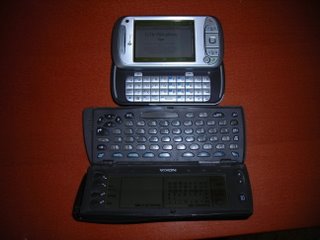
So after so much use of the bigger mobile keyboard, how do I find the TyTN's keyboard?
Answer: Fine.
Obviously it's not as big as the Communicator's, but the benefits far outweigh the benefit of the bigger keyboard. The TyTN's keyboard is very usable, although it takes learning to get the punctuation keys and the symbol-shift being different from regular shift. But the feel of the keys is great, and the backlighting is great.
Others have posted elsewhere comparing the TyTN's and K-JAM's keyboards to the Treo. While it's ultimately a matter of taste, the slide-out keyboard on the TyTN and K-JAM enables the keyboard to be wider while keeping the overall device size very usable.
While I haven't written as much on my TyTN in a month as on my Communicator in 6 years, I've used the TyTN traveling and for note-taking in dozens of meetings, and am very satisfied.
Here's a picture showing how the two keyboards compare:
So after so much use of the bigger mobile keyboard, how do I find the TyTN's keyboard?
Answer: Fine.
Obviously it's not as big as the Communicator's, but the benefits far outweigh the benefit of the bigger keyboard. The TyTN's keyboard is very usable, although it takes learning to get the punctuation keys and the symbol-shift being different from regular shift. But the feel of the keys is great, and the backlighting is great.
Others have posted elsewhere comparing the TyTN's and K-JAM's keyboards to the Treo. While it's ultimately a matter of taste, the slide-out keyboard on the TyTN and K-JAM enables the keyboard to be wider while keeping the overall device size very usable.
While I haven't written as much on my TyTN in a month as on my Communicator in 6 years, I've used the TyTN traveling and for note-taking in dozens of meetings, and am very satisfied.
Wednesday, October 25, 2006
Article on camera-phone flash problems
Regarding my previous message about the TyTN's camera not being up to snuff at night, I came across the following article that discusses cellphone camera flashes being a general problem for all camera phones:
http://www.cellular-news.com/story/20013.php
http://www.cellular-news.com/story/20013.php
Monday, October 23, 2006
Minor Wi-Fi problem, and a few TyTN nitpicks
I've been having a strange Wi-Fi problem, where when I connect to a known wireless network (my home network) sometimes I'll see the connection established in the "network cards" list, and the icon at the top will stop moving and show itself as connected, but the connection doesn't work in e-mail or browser, and when I click on the connection icon I get the message showing it as disconnected (instead of the network name to which it's connected). Then I have to disconnect and connect again, and it works. I can't see a pattern in when this happens. Very strange.
Few nitpicks while I'm writing:
1. I wish the phone keypad buttons were bigger, they could make the auxiliary buttons smaller
2. Sometimes when I open a contact in contacts, then switch to something else, and go back to contacts, the contact is closed, very frustrating.
3. Contacts list view by company is very slow. (And there be other easy contact search options)
4. The Connections Manager should be able to switch the ringer to silent, not just ring and vibrate
That's all for now!
Few nitpicks while I'm writing:
1. I wish the phone keypad buttons were bigger, they could make the auxiliary buttons smaller
2. Sometimes when I open a contact in contacts, then switch to something else, and go back to contacts, the contact is closed, very frustrating.
3. Contacts list view by company is very slow. (And there be other easy contact search options)
4. The Connections Manager should be able to switch the ringer to silent, not just ring and vibrate
That's all for now!
TyTN as camera (and MP3 player)
One of the plusses of theTyTN is that it can serve as a replacement digital camera and digital media player. After a month of use, my bottom line is this: it serves as an excellent always-there camera and MP3 player, but not truly as a replacement for a serious camera.
I tried getting through an outing with kids at an amusement park without my regular digital camera, a 4 mega-pixel camera from Nikon. Obviously the TyTN's camera is 2mp, but I find the quality of pictures taken outside during daylight to be very good. If you want pictures for digital use (e-mailing or sharing on-line) 2 megapixel will be fine for most people. The same is true of the TyTN's video clip capabilities.
But at night I found the TyTN's camera to be sub-standard. I basically couldn't take decent pictures at night, regardless of areas being lit up.
On a week-long business trip, I was able to use the TyTN well for on-the-spot pictures and video clips that I didn't expect to have to take, but liked taking with a camera that was already in my pocket.
So, bottom line:
a. if you want to print picture-quality blow-ups, you need more megapixels,
b. if you're going at night, you're going to want a real camera,
but for spontaneous and always-there use, and when you don't want to carry other devices, the camera has been very good.
While I'm writing, I find the TyTN very good as an MP3 player as well, although I'm not a heavy iPod user so I can't really compare the quality. With a 1gig card the TyTN can hold enough for me to listen to music and recorded lectures while driving 3 hours each day and flying overseas. But someone else will need to judge the quality, and of course you can't buy on iTunes.
I tried getting through an outing with kids at an amusement park without my regular digital camera, a 4 mega-pixel camera from Nikon. Obviously the TyTN's camera is 2mp, but I find the quality of pictures taken outside during daylight to be very good. If you want pictures for digital use (e-mailing or sharing on-line) 2 megapixel will be fine for most people. The same is true of the TyTN's video clip capabilities.
But at night I found the TyTN's camera to be sub-standard. I basically couldn't take decent pictures at night, regardless of areas being lit up.
On a week-long business trip, I was able to use the TyTN well for on-the-spot pictures and video clips that I didn't expect to have to take, but liked taking with a camera that was already in my pocket.
So, bottom line:
a. if you want to print picture-quality blow-ups, you need more megapixels,
b. if you're going at night, you're going to want a real camera,
but for spontaneous and always-there use, and when you don't want to carry other devices, the camera has been very good.
While I'm writing, I find the TyTN very good as an MP3 player as well, although I'm not a heavy iPod user so I can't really compare the quality. With a 1gig card the TyTN can hold enough for me to listen to music and recorded lectures while driving 3 hours each day and flying overseas. But someone else will need to judge the quality, and of course you can't buy on iTunes.
Sunday, October 22, 2006
TyTN video e-mail -- easy!
I was curious how well the TyTN could send video e-mails, and it worked very well!
Just turned on the TyTN, started the camera, selected video mode, held it with the lens facing me, pushed the button again, and started recording my message. Pushed the button when done, then quit out of the camera. Entered "pictures and videos" and previewed the video, then clicked "send" to send it out. It was then sent the next time I did a "send and receive" when connected, and was received and viewed by a not-so-technical recipient.
This can also be done for still pictures, and for still pictures there is some rudimentary picture editing available (such as cropping). For video it's send-as-is, but it works well for what it is.
Very cute capability!
Just turned on the TyTN, started the camera, selected video mode, held it with the lens facing me, pushed the button again, and started recording my message. Pushed the button when done, then quit out of the camera. Entered "pictures and videos" and previewed the video, then clicked "send" to send it out. It was then sent the next time I did a "send and receive" when connected, and was received and viewed by a not-so-technical recipient.
This can also be done for still pictures, and for still pictures there is some rudimentary picture editing available (such as cropping). For video it's send-as-is, but it works well for what it is.
Very cute capability!
Traveling with TyTN Wi-fi
After traveling for a week and wanting to use my TyTN for connectivity, here are my experiences with it's Wi-Fi.
First, to be clear, setting up the TyTN's Wi-Fi with my home wireless network was a cinch. Easy. Piece o' cake.
But when I got to my first airport, I found that I couldn't connect my TyTN to a Wi-Fi network that my laptop was able to see and connect to. It took me a while to find the list of networks being attempted, you need to open "WLAN settings" from the menu in the connection manager, then "Network cards" menu from there. (Now tell me, is that intuitive?) The problem in the first airport was that my TyTN was set to require WEP security, which I use at home, and it wasn't able to connect to the open network at the airport. Opening up the network at the airport (single click on the network name) and de-selecting the checkbox to require WEP was enough to make the TyTN connect to that airport's wireless network.
But in the second airport, the TyTN was able to connect, but I wasn't allowed to access anything. I figured there must be a registration form, so I opened up a random URL (the first in my favorites) in the browser, but the browser showed nothing. It seems that the Web page that this airport's network was trying to show was too complex for the TyTN browser.
In later networks, such as t-mobile networks in America, I was able to follow this procedure and get to the t-mobile sign-in page in the browser. So the process works, it's just that one airport's Web page that's too complex. Unfortunately this was Newark airport, a common airport for me to fly through (I forget which terminal).
Elsewhere in the trip, when I found truly open public Wi-fi hotspots, I was able to connect with no problem, as long as WEP was set not to be required. In a hotel that required Web page login, with a simple Web page, the process worked with no problems.
Bottom line, after learning where to find the list of networks, learning to un-require WEP, and sometimes opening up a random URL in the browser to log into a network, I found that traveling with my TyTN and connecting in hotspots worked fairly well.
The only real catch was the complex page that couldn't open in the browser in one place, and of course that some hotspots weren't free. Other than that, it's "not perfect but very good."
First, to be clear, setting up the TyTN's Wi-Fi with my home wireless network was a cinch. Easy. Piece o' cake.
But when I got to my first airport, I found that I couldn't connect my TyTN to a Wi-Fi network that my laptop was able to see and connect to. It took me a while to find the list of networks being attempted, you need to open "WLAN settings" from the menu in the connection manager, then "Network cards" menu from there. (Now tell me, is that intuitive?) The problem in the first airport was that my TyTN was set to require WEP security, which I use at home, and it wasn't able to connect to the open network at the airport. Opening up the network at the airport (single click on the network name) and de-selecting the checkbox to require WEP was enough to make the TyTN connect to that airport's wireless network.
But in the second airport, the TyTN was able to connect, but I wasn't allowed to access anything. I figured there must be a registration form, so I opened up a random URL (the first in my favorites) in the browser, but the browser showed nothing. It seems that the Web page that this airport's network was trying to show was too complex for the TyTN browser.
In later networks, such as t-mobile networks in America, I was able to follow this procedure and get to the t-mobile sign-in page in the browser. So the process works, it's just that one airport's Web page that's too complex. Unfortunately this was Newark airport, a common airport for me to fly through (I forget which terminal).
Elsewhere in the trip, when I found truly open public Wi-fi hotspots, I was able to connect with no problem, as long as WEP was set not to be required. In a hotel that required Web page login, with a simple Web page, the process worked with no problems.
Bottom line, after learning where to find the list of networks, learning to un-require WEP, and sometimes opening up a random URL in the browser to log into a network, I found that traveling with my TyTN and connecting in hotspots worked fairly well.
The only real catch was the complex page that couldn't open in the browser in one place, and of course that some hotspots weren't free. Other than that, it's "not perfect but very good."
Traveling with my TyTN (general points)
I spent last week on the road, Sunday night through Friday afternoon, and here are a few thoughts. Many of these are really comments on Windows Mobile 5.0 and not strictly speaking on the TyTN.
First, I crossed a lot of time zones, and the visiting time zone feature worked perfectly. I really thought it wouldn't, because I've had such trouble with Outlook time zones not handling meeting invitations properly, but bottom line, it worked like a charm. I received Outlook meeting invitations from people in other time zones, forwarded them from my work email to my Yahoo email (the Yahoo webmail interface didn't recognize them as meeting invitations), and then downloaded them to my TyTN, which did recognize them as invitations, and accepted them. It put them on my calendar in the correct absolute time. Then, on the plane when I set myself as visiting the new time zone, they shifted right into place. Yes, I know it's basic and I shouldn't be surprised that it works, but I am. But it works!
Second, battery life. Lots of people have been complaining of battery life. I recharged my TyTN before leaving, used it as a phone on the way to the airport, used Wi-Fi in the airport for a few minutes (more in this in another message), listened to MP3's for about 3 hours, then another hour of cellphone use and a few minutes of Wi-Fi use, then another hour of MP3 use on another plane, then an hour of phone use, and still had 40% battery left. The catch is that the phone is off on the plane, and I turn on Wi-Fi only when I need it. I guess I'd always rather it had more power, but it was sufficient for the amount that I wanted to use it during 23 hours in transit.
Third, international roaming, worked no problem. Each new city took 1-2 minutes to find the appropriate frequencies and carriers, but everything worked fine after that.
Note that I wasn't roaming with a data plan, just a voice plan and Wi-Fi, since I'm still in the process of upgrading my data plan.
Fourth, recharging all over was easy, just pick the necessary adaptors and plug in anywhere worldwide.
Fifth, I really tried to go paperless and access all my working documents, maps, schedules, etc on my TyTN. On the one hand, they all opened up fine, including PDFs. On the other hand, they were hard to use sometimes on the TyTN's screen, so some things are still worth printing on paper :-(
Last, playing music in the TyTN's headphones came out very well, IMVHO. But I haven't spent that much time with an iPod, so I'm not really comparing. Stereo music through the headset is much much better than over their speaker, so don't judge the TyTN's music playing by its speaker.
First, I crossed a lot of time zones, and the visiting time zone feature worked perfectly. I really thought it wouldn't, because I've had such trouble with Outlook time zones not handling meeting invitations properly, but bottom line, it worked like a charm. I received Outlook meeting invitations from people in other time zones, forwarded them from my work email to my Yahoo email (the Yahoo webmail interface didn't recognize them as meeting invitations), and then downloaded them to my TyTN, which did recognize them as invitations, and accepted them. It put them on my calendar in the correct absolute time. Then, on the plane when I set myself as visiting the new time zone, they shifted right into place. Yes, I know it's basic and I shouldn't be surprised that it works, but I am. But it works!
Second, battery life. Lots of people have been complaining of battery life. I recharged my TyTN before leaving, used it as a phone on the way to the airport, used Wi-Fi in the airport for a few minutes (more in this in another message), listened to MP3's for about 3 hours, then another hour of cellphone use and a few minutes of Wi-Fi use, then another hour of MP3 use on another plane, then an hour of phone use, and still had 40% battery left. The catch is that the phone is off on the plane, and I turn on Wi-Fi only when I need it. I guess I'd always rather it had more power, but it was sufficient for the amount that I wanted to use it during 23 hours in transit.
Third, international roaming, worked no problem. Each new city took 1-2 minutes to find the appropriate frequencies and carriers, but everything worked fine after that.
Note that I wasn't roaming with a data plan, just a voice plan and Wi-Fi, since I'm still in the process of upgrading my data plan.
Fourth, recharging all over was easy, just pick the necessary adaptors and plug in anywhere worldwide.
Fifth, I really tried to go paperless and access all my working documents, maps, schedules, etc on my TyTN. On the one hand, they all opened up fine, including PDFs. On the other hand, they were hard to use sometimes on the TyTN's screen, so some things are still worth printing on paper :-(
Last, playing music in the TyTN's headphones came out very well, IMVHO. But I haven't spent that much time with an iPod, so I'm not really comparing. Stereo music through the headset is much much better than over their speaker, so don't judge the TyTN's music playing by its speaker.
After a month of TyTN use and a week of travel
After a month of use of my TyTN, and an intense week of travel with it, I have enough to write that I'm going to break it into a few messages.
Bottom line, I'm very happy with the TyTN. I've been using the keyboard heavily during meetings, have used it heavily each day as an MP3 player, have taken kids to an amusement park without a camera and relied on the TyTN camera (mixed results), used the Wi-Fi connection in airports and in other offices when traveling, have sent video e-mails when traveling, and have used it to show video clips.
I'll talk about all these in individual messages over the next day or so.
One thing I haven't done yet is cellular data connectivity, because I'm still upgrading my phone plan.
Bottom line, I'm very happy with the TyTN. I've been using the keyboard heavily during meetings, have used it heavily each day as an MP3 player, have taken kids to an amusement park without a camera and relied on the TyTN camera (mixed results), used the Wi-Fi connection in airports and in other offices when traveling, have sent video e-mails when traveling, and have used it to show video clips.
I'll talk about all these in individual messages over the next day or so.
One thing I haven't done yet is cellular data connectivity, because I'm still upgrading my phone plan.
Subscribe to:
Posts (Atom)